Text Blaze Highlights
 Cross-Tab {click} Command
The {click} command allows you to have your snippet click on different parts of the page. This can be useful for shifting focus between text fields or clicking buttons.
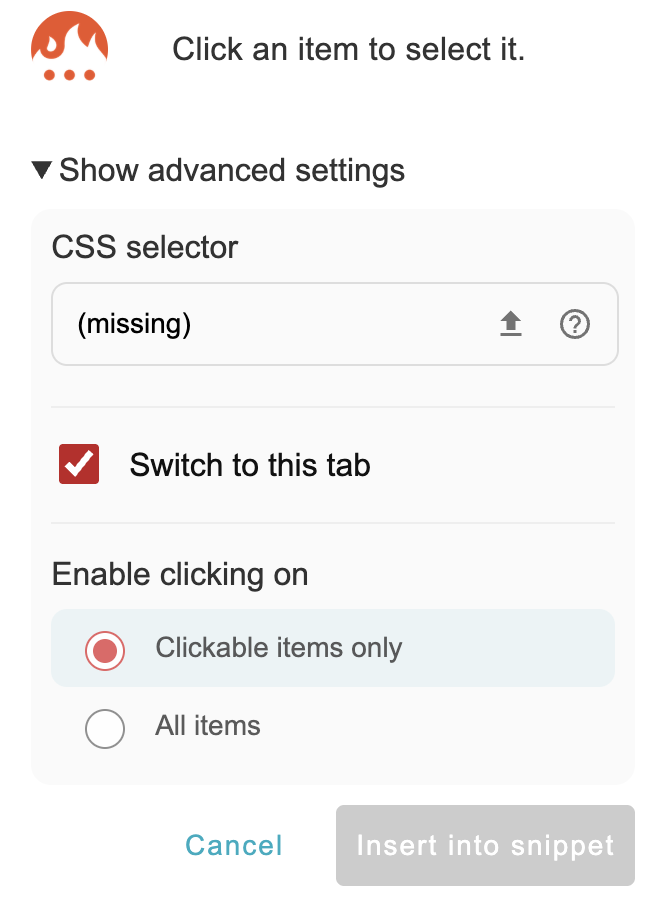
This month we've extended the {click} command to allow you to click other tabs that you currently have open. When your snippet clicks into another tab, the snippet will continue on that tab, allowing you to run a single snippet across multiple tabs.
To enable the cross-tab capability, check the "Switch to this tab" checkbox when setting up the {click} command's selector:
Thanks to everyone who filled out our annual survey this year. This was one of the common requests we got!
 Customize the Assistant Sidebar Size
The Text Blaze Assistant makes it easy to search and insert your most-used snippets. You can launch it with a keyboard shortcut and press Enter to insert a snippet. To start using it, click the Text Blaze icon in the Chrome toolbar (for the Chrome extension), in the system menu bar (for the Mac app), or in the system tray (for the Windows app).
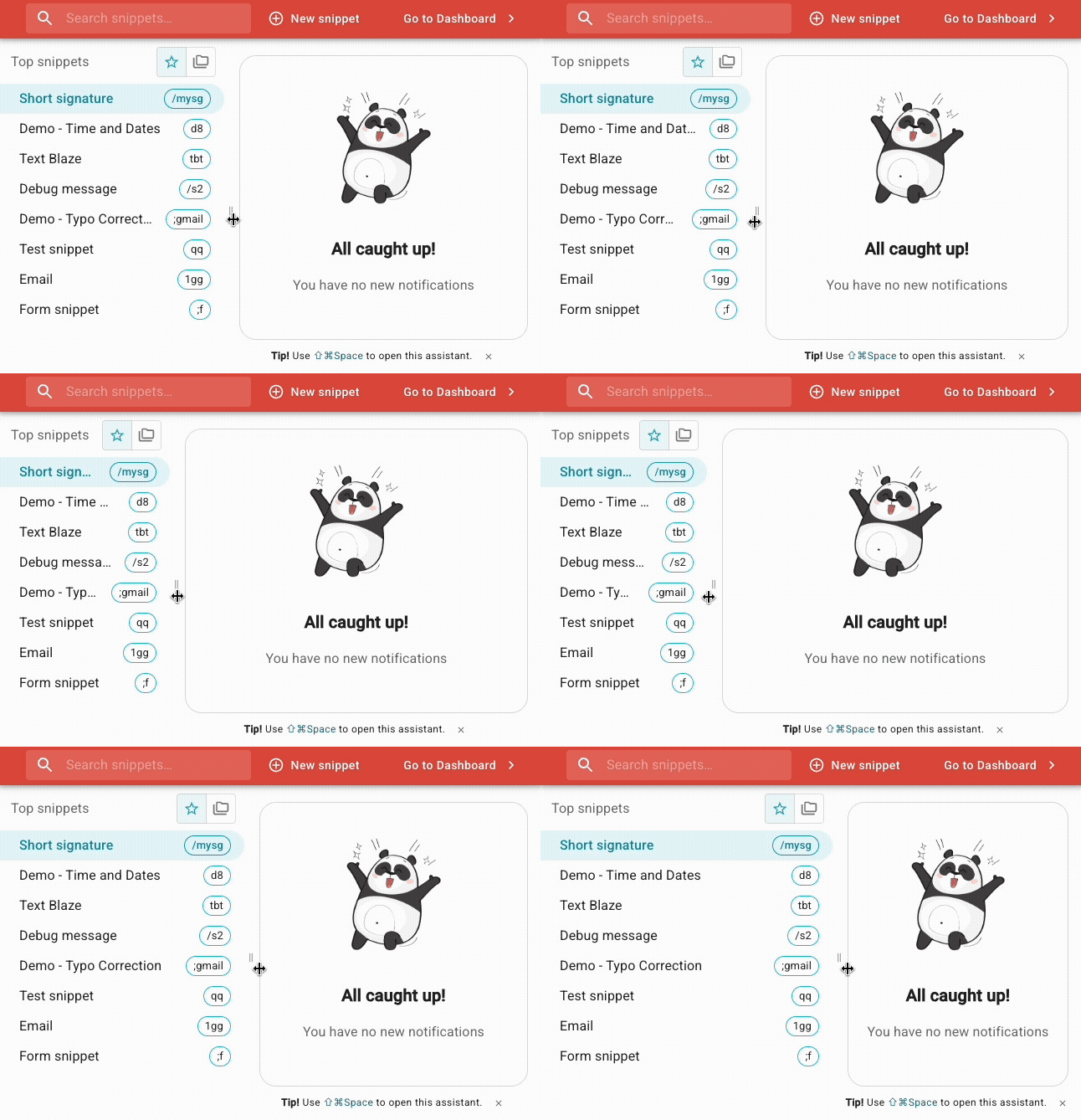
The snippet sidebar on the left of the Text Blaze Assistant is now resizable. Feel free to adjust it to your liking, making it larger or smaller based on your needs.
AI Blaze Highlights
 Improved Page Context
AI Blaze can include your page's contents as context when you use a prompt. This allows you to ask the AI to summarize the page or otherwise respond to the contents of the page. When it does that, it converts the page's HTML to Markdown, a common format used by LLMs.
This month, we've improved that process significantly. We now handle whitespace and newlines much better and can also more accurately hide or show elements in the Markdown to reflect their visibility on the page.
These changes will lead to more accurate and useful responses from AI Blaze.
Data Blaze Highlights
 Improved Table Creation
We've improved the positioning of newly created tables in Data Blaze.
When you create a duplicate of a table, we will place the new table immediately to the right of the existing table. Similarly, if you create a new table, we will place it immediately to the right of the currently focused table.
Previously, new tables would be placed at the end of the table list.
And remember... 
We're always here for you! If you ever need a helping hand, don't hesitate to drop a line in our Question and Answer community forums. And if there's something you'd love to see, we'd be absolutely thrilled to hear about it in the Feature Ideas section.