I have a questions/tech support request regarding table snippets
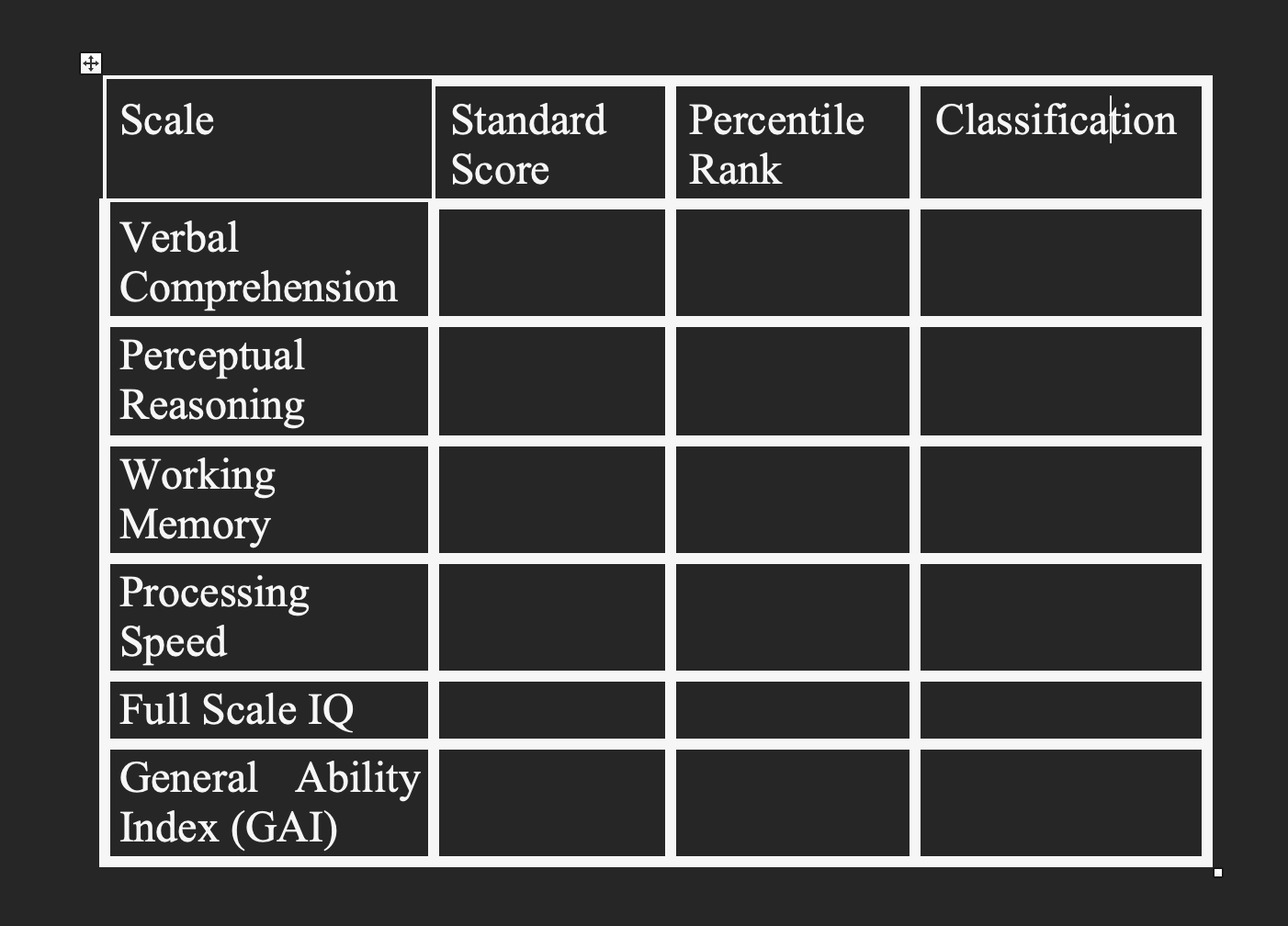
Whenever I enter a table from a snippet it gets entered in a strange bolded format, but not everything is bolded (see picture). is there a way to change this? I would like the borderlines to all by unbolded like only the top left corner is.
Thank you 
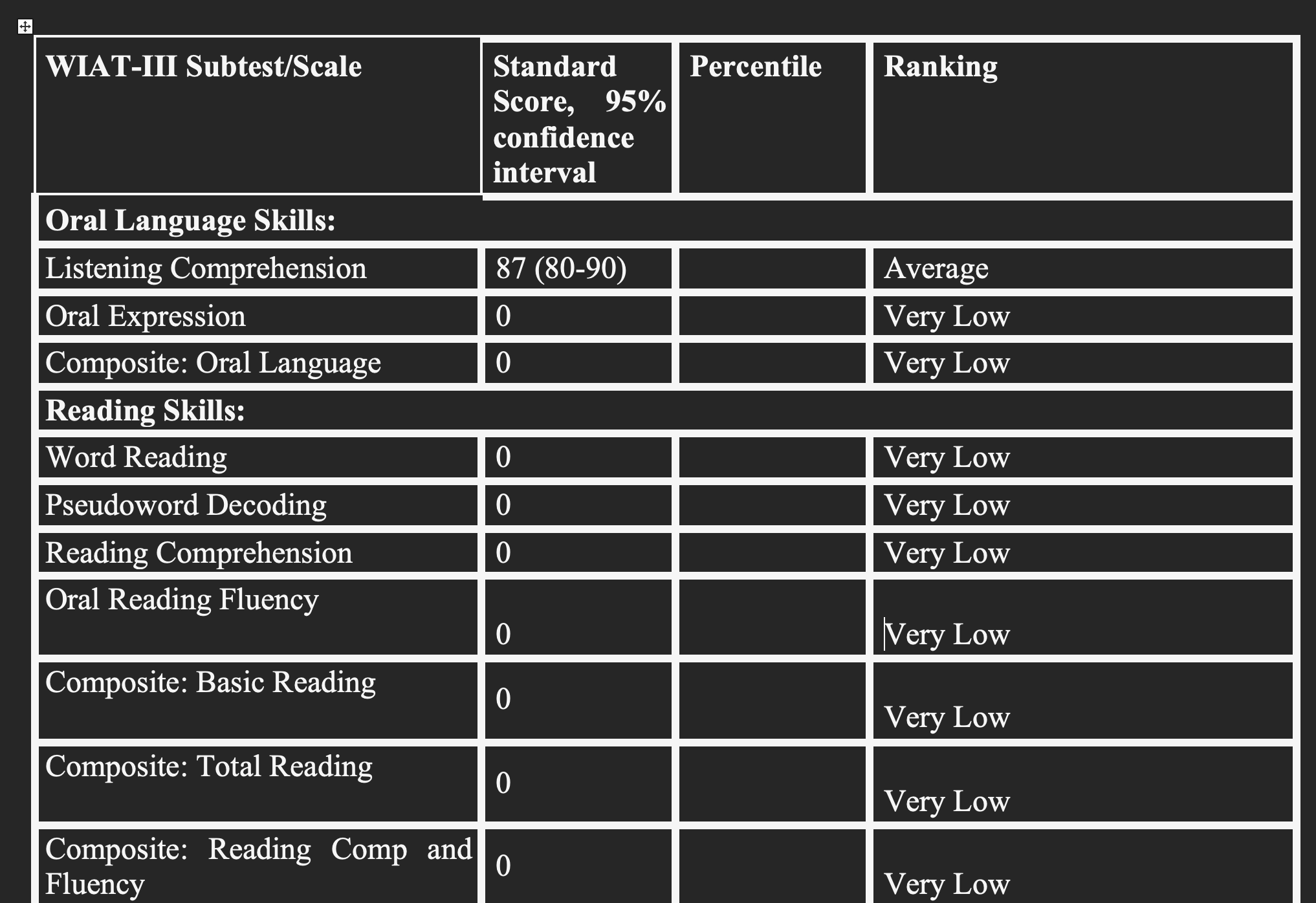
In Addition to this problem, I've just realized there is also an issue where the text in the one column is being automatically entered with an extra space, which is making the table much larger than it needs to be. Can someone tell me how to fix this? I can't figure out why it is happening as I don't have a space in or before the formula.
See picture below for example. I have manually corrected the first few by deleting the extra line before the Ranking, but have left the bottom one's so you can see the difference.
Thanks,
Nic
Hi,
Can you please share where you have been using the table snippet? Is it something I can use it myself to test?
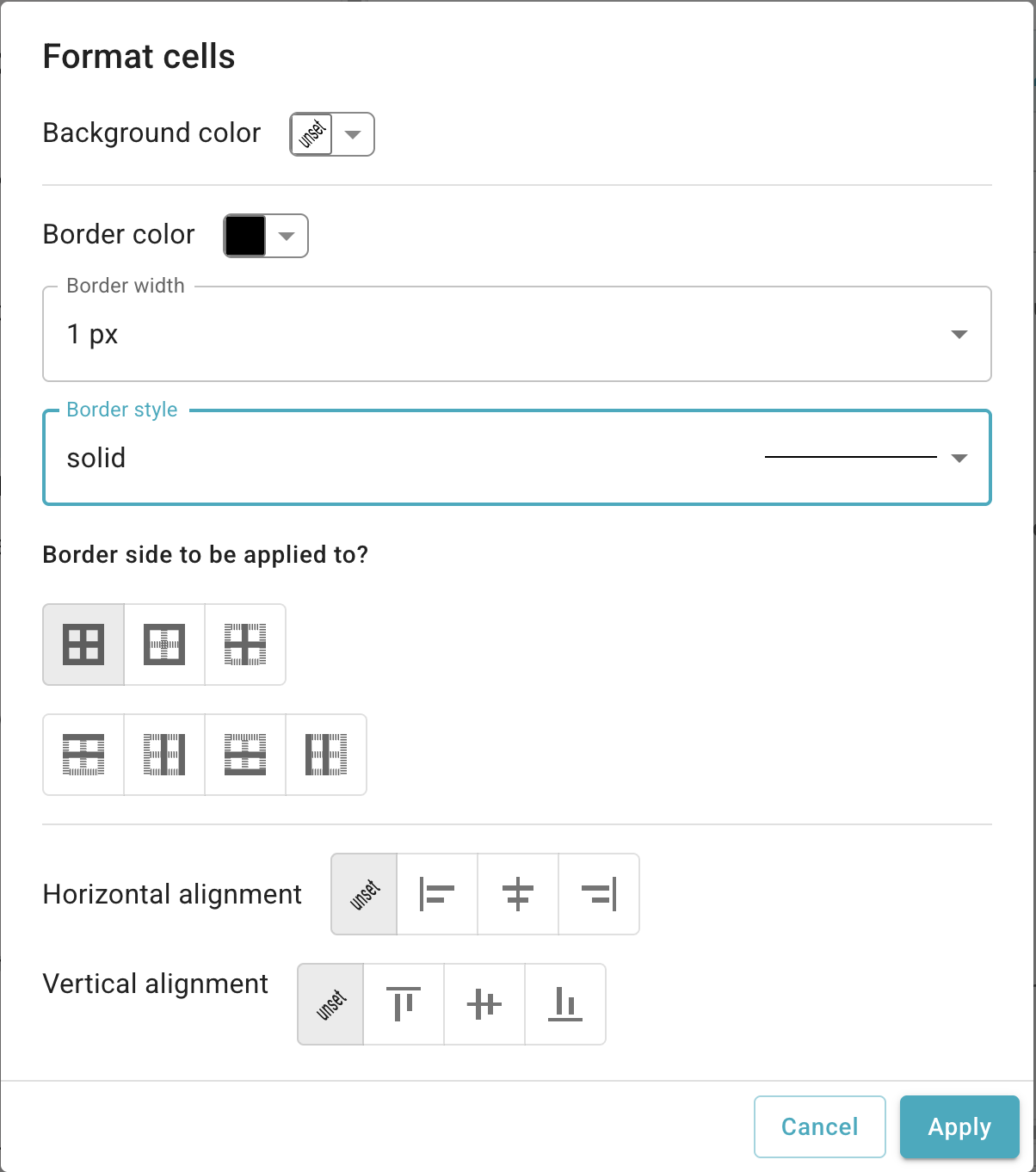
Also for the borders can you select all the cells > Right click > Format cells.
And select the following options.
Border color: Black
Border width: 1px
Border style: solid
Save and retry the snippet if it helps.
Hi, that did not work for me, but I have figured out an easy solution. I am using it in Microsoft word.
Are you able to suggest how I can fix the space issue mentioned in my other comment?
Can you please share what the solution was, so other Text Blazers can benefit from it.
Is this issue happening everywhere or just in MS word? Can you please try like in GMail and let me know your observations. Can you also share both versions of the table (in snippet editor and where you used it)? So I can understand the problem.
I think I got the issue. I think this is a classic whitespace issue.
Please check this guide Text Blaze | Tidying Whitespace .
Basically, when you have commands like {if}, you would assume the lines wont appear between the condition and text. But it would keep the newlines.